Critter Cafe Guide
Commonly asked questions answered on one page!
If there's something you don't know how to do and it's not listed here, please don't hesitate to email us at [email protected], or post your question on critter.cafe and tag us with @staff
General
Follow someone on a different instance
Posting
Enable markdown in the post creator
Add tags separately from text of post
Post privacy explanation
Customization
Mute the notification sound
Show reply counts on posts
Change the theme
Show what post a reply is replying to
Fix posts being collapsed by default
General
Follow someone on a different instance
1) Navigate to the user's profile in your web browser
2) Click the "follow" button
3) You will be prompted with a field asking you to enter your instance
4) Type in critter.cafe
5) Click "Take me home"
6) This will take you to a critter.cafe version of that person's profile
7) Click the "Follow" button
8) You're now following them!Alternatively use this extension on Firefox to make follow / like / boost buttons work on any instance's page
Posting
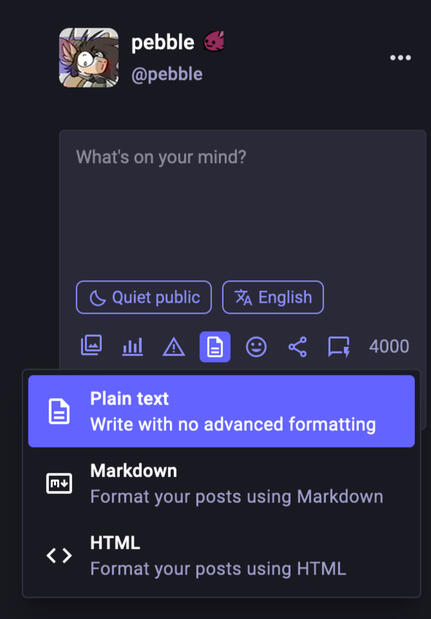
Enable markdown in the post creator
This is useful if you want to use bold text, italics, inline links, etc.1) On your feed, on the right, click "App settings"
2) In the newly opened window, on the left, click "Compose box"
3) Check "Show content-type choice when authoring toots"
4) Click the red "x Close" button
5) You will now have a new option in your post compose box. When you click it, you will be able to choose between plain text, markdown, or html formatting.Please note that html formatting is simply letting you use html tags to do markdown, css crimes are not supported.Please also note that this setting is applied per browser session, so if you sign in on a different browser or device you will need to do this again.
Add tags separately from text of post
You can add tags at the bottom of a post like you used to be able to on cohost, but it's a little less intuitive. Just create your post like you normally would, then add all the tags at the bottom of it and make sure to leave an empty line between the content of your post and your tags. Example:Hello world. This is my post.#hello #testpostIf you do it like this, the tags will display separately in their own little section.
Post privacy explanation
There are 4 different types of post privacy. Each type of post acts differently.You can set your default post privacy in the following place:
Preferences > Other > Posting Defaults / Posting privacy- Public posts will show up to people who do not follow you in local and global feeds. We do not recommend using this privacy option as it can easily expose you and your account to unintended audiences.
- Quiet public or unlisted posts will not show up in local or global feeds. They will only show up to people who follow you or people who go to your profile. If someone boosts them, they will show up to that person's followers.
- Followers posts are only shown to your followers. These posts cannot be boosted. Please not that if someone replies to your followers-only post, the privacy of their reply will also be set to "followers", but in this case the reply will be visible only to that user's followers and you. Users who follow the user who replied to you but do not follow you will not be able to see your post, but they will be able to see the reply.
- Specific people posts are effectively DMs. They are only visible to the people tagged in your post.
Customization
Mute the notification sound
1) On the critter.cafe page, on the right, click Notifications
2) At the top, click on the cog icon to open notification settings
3) Scroll down a little bit within the small settings window until you see the different notification types
4) Uncheck "play sound" on each notification type you do not want to receive audible notifications from
Show reply counts on posts
1) On your feed, on the right, click "App settings"
2) In the newly opened window, on the left, click "General"
3) At the top of the General section, check "Display an estimate of the reply count"Please note that this setting is applied per browser session, so if you sign in on a different browser or device you will need to do this again.
Change the theme
1) On your feed, on the right, click "Preferences"
2) On the newly opened page, on the left, click "Flavours"
3) Within the "Glitch edition" section, scroll down a little until you see the "Skin" section
4) Click on the drop-down menu under "Skin"
5) Select the theme you want to use
6) Click the highlighted "Use this" buttonPlease note that this setting is applied per browser session, so if you sign in on a different browser or device you will need to do this again.
Show what post a reply is replying to
This is unfortunately not currently possible on our instance due to technical limitations.However! You can use a third party client that allows this. One such client is phanphy.social. The way this works is that you sign in with your critter.cafe account, and then phanphy handles showing you stuff while critter.cafe handles all the technical stuff in the background.
Fix posts being collapsed by default
Are you annoyed that all the posts in your notifications are collapsed by default? This can be easily disabled:1) On your feed, on the right, click "App settings"
2) In the newly opened window, on the left, click "Collapsed toots"
3) Uncheck "Enable collapsed toots"
4) Click the red "x Close" button
5) Done!Please note that this setting is applied per browser session, so if you sign in on a different browser or device you will need to do this again.